Bypassing Android Forced Update Dialogs with Frida

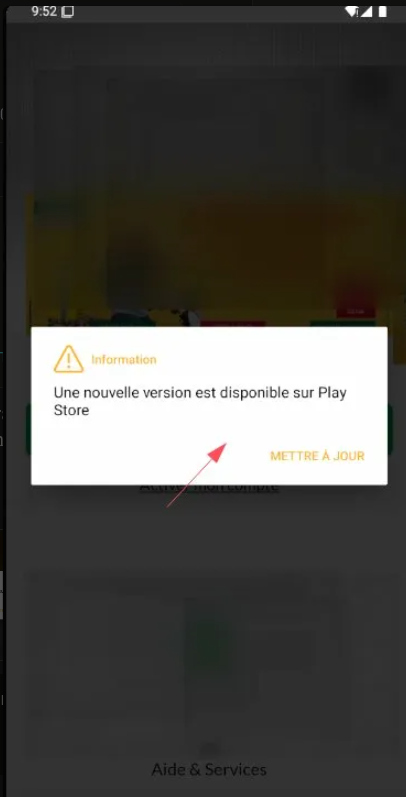
During a mobile penetration testing engagement, the target Android application displays a forced update dialog on startup: "Une nouvelle version est disponible sur Play Store" with a single button "METTRE À JOUR" that redirects to the Play Store. The dialog is not dismissable — there is no close button and tapping outside does nothing. This blocks all access to the application's functionality.
The Problem
Many mobile applications implement a forced update mechanism that compares the installed app version against the latest version available on the Play Store (or a backend API). If the installed version is outdated, the app shows a modal dialog that cannot be dismissed, effectively preventing the user — or in our case, the pentester — from accessing the application.
During a mobile pentest, we often work with an older or patched version of the APK (e.g., after SSL
pinning bypass with apk-mitm). The patched APK will almost always trigger this check
since it no longer matches the Play Store version.
How Forced Updates Work
Typically, the app performs one of these checks on startup:
- Play Store API check — queries Google Play for the latest version number
- Backend API check — calls a custom endpoint like
/api/version/check - Firebase Remote Config — reads a minimum version from Firebase
- In-App Updates API — uses Google's official
AppUpdateManager
If the installed version is lower than the required version, the app creates an AlertDialog
(or a custom dialog) with setCancelable(false), making it impossible to dismiss.
Method 1: Hooking Dialog.show() — The Quick Win
The fastest approach is to simply prevent any dialog from appearing by hooking
the Dialog.show() method in Android's framework.
Save this as bypass-update.js:
Java.perform(function() {
    // Hook AlertDialog.show() to prevent it from displaying
    var AlertDialog = Java.use('android.app.AlertDialog');
    var Dialog = Java.use('android.app.Dialog');

    Dialog.show.implementation = function() {
        console.log("[*] Dialog blocked — forced update bypassed");
        // Simply don't call the original show()
    };

    console.log("[+] Update dialog bypass loaded");
});frida -U -f com.target.app -l bypass-update.jsIn the Frida console, you should see:
[+] Update dialog bypass loaded
[*] Dialog blocked — forced update bypassed
[*] Dialog blocked — forced update bypassed
The app should now load normally without showing the update dialog.
AlertDialog. It's quick, clean, and non-destructive.
Method 2: Blocking the Version Check Request
Instead of blocking the dialog, we can block the network request that fetches the latest version. Without a response, the app can't determine if an update is needed.
Java.perform(function() {
    var URL = Java.use('java.net.URL');

    URL.openConnection.overload().implementation = function() {
        var url = this.toString();

        if (url.includes("update") ||
            url.includes("version") ||
            url.includes("force") ||
            url.includes("play.google")) {
            console.log("[*] Blocked version check: " + url);
            throw Java.use('java.io.IOException').$new("blocked");
        }

        return this.openConnection();
    };

    console.log("[+] Version check network block loaded");
});
Method 3: Spoofing the App Version
Another approach is to fake the installed version so the app thinks it's already
up to date. We hook PackageInfo to return a very high version number.
Java.perform(function() {
    var PackageManager = Java.use('android.app.ApplicationPackageManager');

    PackageManager.getPackageInfo.overload(
        'java.lang.String', 'int'
    ).implementation = function(pkg, flags) {
        var info = this.getPackageInfo(pkg, flags);

        // Spoof to very high version
        info.versionName.value = "99.99.99";
        info.versionCode.value = 999999;

        console.log("[*] Spoofed version for: " + pkg +
                    " → 99.99.99 (code: 999999)");
        return info;
    };

    console.log("[+] Version spoof loaded");
});
Method 4: APK Patching (Permanent Fix)
If you need a permanent bypass that doesn't require Frida running, you can patch the APK directly by finding and modifying the update check logic in the smali code.
Step 1: Find the update check
# Decompile the APK
apktool d target.apk -o source

# Search for update-related strings
grep -rn "nouvelle version\|METTRE.*JOUR\|forceUpdate\|versionCheck\|updateRequired" \
  source/smali/ source/res/
Step 2: Identify the method
Look for the class that creates the dialog. Common patterns in smali:
# Look for setCancelable(false) near version check
invoke-virtual {v0, v1}, Landroid/app/AlertDialog$Builder;->setCancelable(Z)

# Or look for the update string resource
const-string v1, "Une nouvelle version"
Step 3: Patch the condition
# Change the comparison from "if not equal" to "if equal"
# Before (shows dialog when version is old):
if-ne v0, v1, :show_update_dialog

# After (never shows dialog):
if-eq v0, v1, :show_update_dialog

# Or simply make the method return immediately:
.method public checkForUpdate()V
    .locals 0
    return-void
.end method
Step 4: Rebuild and sign
apktool b source -o patched.apk

keytool -genkey -v -keystore test.keystore -alias test \
  -keyalg RSA -keysize 2048 -validity 10000 \
  -storepass password -keypass password -dname "CN=test"

apksigner sign --ks test.keystore --ks-pass pass:password patched.apk

adb install patched.apk
Method 5: Network-Level Block
The simplest approach — just block the device from reaching Play Store APIs entirely:
# Block Play Store version check endpoints
adb shell iptables -A OUTPUT -d play.googleapis.com -j DROP
adb shell iptables -A OUTPUT -d android.clients.google.com -j DROP

# To restore later:
adb shell iptables -D OUTPUT -d play.googleapis.com -j DROP
adb shell iptables -D OUTPUT -d android.clients.google.com -j DROPResults
Before — Forced update dialog blocking access:
After — Dialog blocked, full access to app:
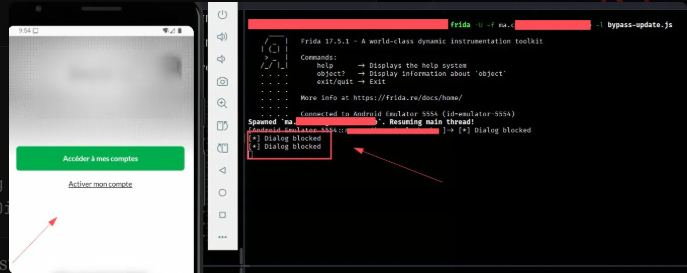
Using Method 1 (Dialog hook), Frida successfully intercepted two
Dialog.show() calls and prevented them from displaying. The application loaded
normally, showing the login screen with "Accéder à mes comptes" — full access restored.
Key Takeaways
When encountering forced update dialogs during mobile pentests, try the methods in this order:
- Dialog hook (Method 1) — fastest, works in most cases
- Version spoof (Method 3) — if the app checks version internally
- Network block (Method 5) — if the app checks Play Store
- Request block (Method 2) — if you can identify the check endpoint
- APK patch (Method 4) — permanent fix, but more effort
From a security perspective, forced update mechanisms are a good practice — they ensure users run patched versions. However, the implementation should not rely solely on client-side checks, as demonstrated here. Server-side version enforcement on API calls is the more robust approach.